Running Simulations
Learn how to simulate your quantum circuits and interpret the results.
Simulation Setup
Configuration Panel
Open the Console tab by clicking on the console button ( ) on the right of the screen.
Here you can configure:
- Number of shots: How many times to run the circuit (1-500000)
- Measurement settings: Which qubits to measure
For details on the editor interface, see Circuit Editor.
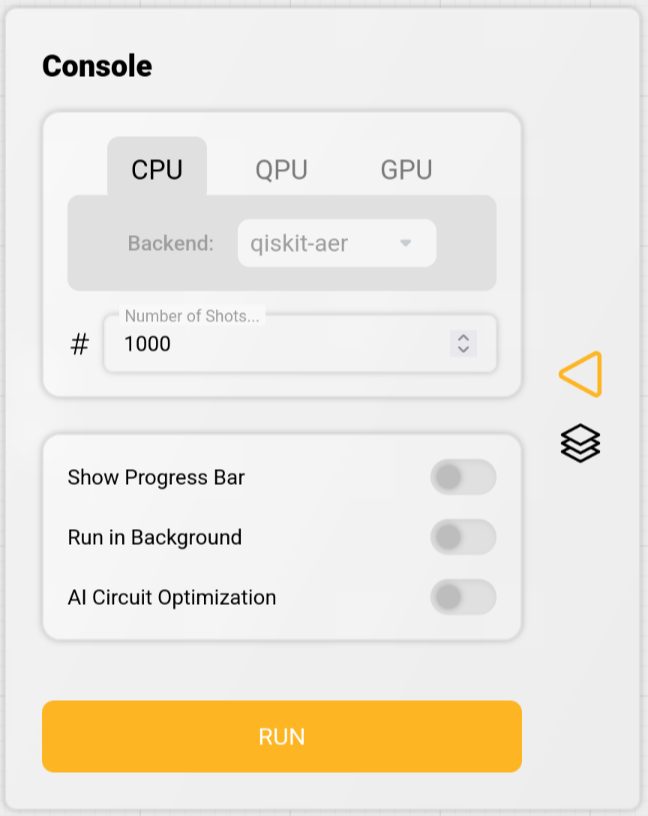
Running a Simulation
- Build your quantum circuit
- Configure simulation settings in the Console tab
- Click "RUN" to start the simulation
- Wait for computation to complete
- View results in the Results panel
For better statistical accuracy, use more shots. For faster results, use fewer shots.
Understanding Results
Probability Distribution
Shows the probability of measuring each possible state:
- Displayed as percentages
- Visualized with bar charts
- Updates in real-time
Display Options
State Format
You can choose how states are displayed on the x-axis:
- Normal Format (default): States shown as |q₀q₁q₂⟩ (same order as circuit)
- Example: |001⟩ means q₀=0, q₁=0, q₂=1
- Qiskit Format: States shown in reverse order
- Example: |001⟩ means q₀=1, q₁=0, q₂=0
Default: Normal Format
Measurement View
You can choose to show or hide unmeasured qubits in the results:
- All States (default): Display all qubits in the state labels
- Trace Out: Remove unmeasured qubits from the display
Default: Trace Out
Use Trace Out when you only want to see the distribution of measured qubits, ignoring unmeasured ones.
Display Mode
View the actual number of times each state was measured:
- Switch the display mode in the Results panel to "Counts"
- Shows raw measurement data
- Useful for statistical analysis
Default: Probability Distribution
Exporting Data
Export your results for further analysis:
- Click the export button below the Results panel
Remember to save your results by clicking the "Export" button before starting a new simulation.